Enhance
Written By Kacper Staniul
Last updated 9 months ago
If you want to add a final layer of details to your renders, refine textures, lighting effects, and reflections, use the 'Enhance' tool.
The Enhance engine instantly improves image quality and resolution, making your renders sharper and more detailed.
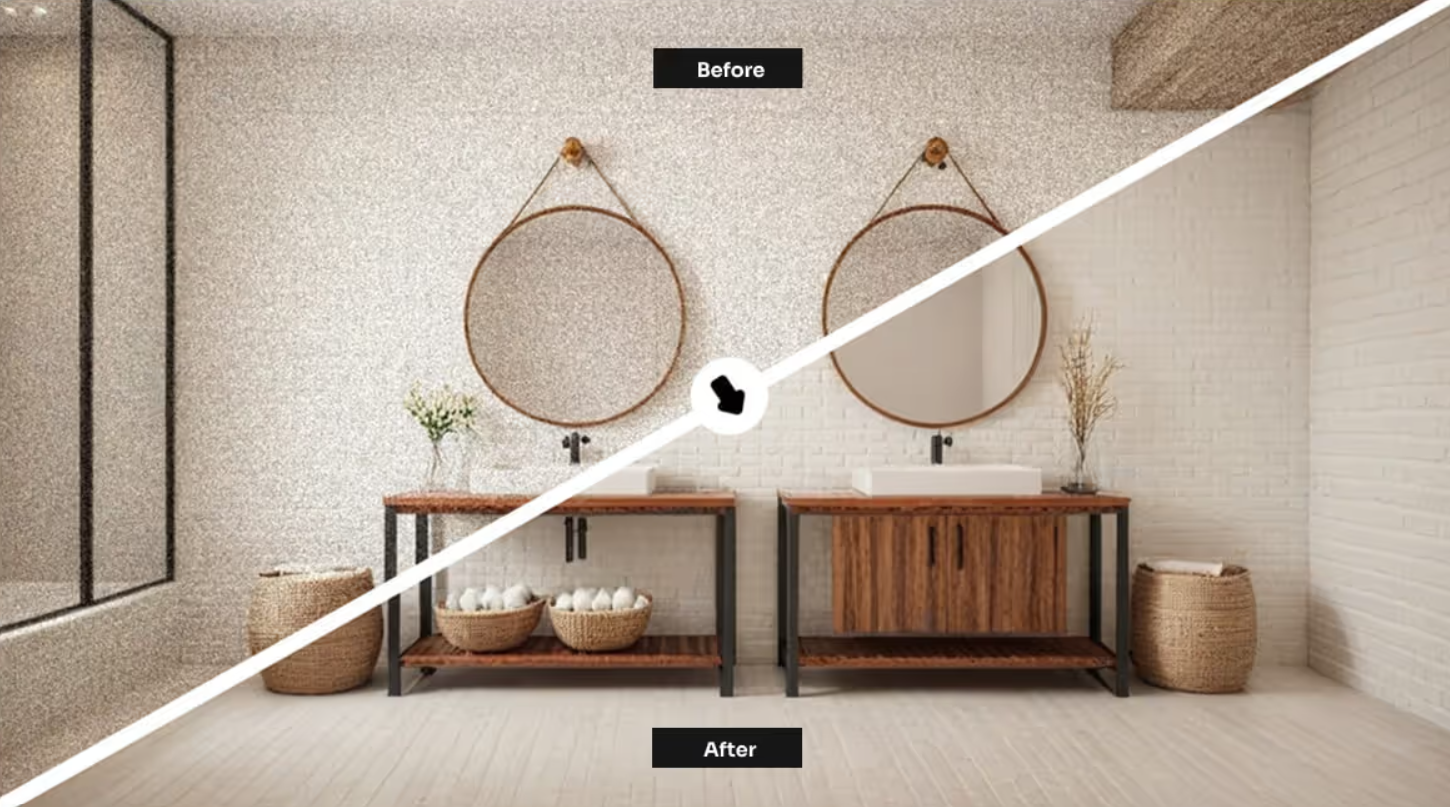
Here’s a quick video overview:
There are only two settings to work with: the prompt and the creativity slider.
We recommend leaving the default prompt unchanged.
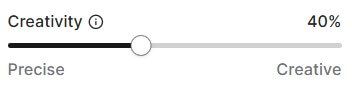
The Creativity slider controls how much freedom the enhancer has when improving your image. Higher values give the AI more creative freedom, while lower values stay closer to your original design.
If your render already looks solid and just needs polishing, a creativity range of 20 to 40% works best. If you’re starting from a very low-resolution render, you can increase the creativity value beyond that range.
And if you want to improve only a specific area of your render, use the Enhance area tool in the Edit tab. It’s especially useful for enhancing faces, vehicles, and plants.
Was this helpful?
Still need help? Ask the team