Prompting best practices
Written By Kacper Staniul
Last updated 6 months ago
Prompting is a method of communicating with AI applications by providing specific instructions on what you want to see in the output using text descriptions.
MyArchitectAI’s rendering engines are optimized to work without prompts, so using them is optional.
If you have specific requirements you want the engine to follow, here are some best practices for writing effective prompts.
First of all, MyArchitectAI is not a chat app (like ChatGPT, for example), so instead of giving it instructions (create, make, render), just describe what you want your render to look like.
Second, try to keep the prompt concise, as overly long ones might confuse the AI.
To give you an idea of what good and bad prompts look like, let’s have a look at a couple of examples of both.
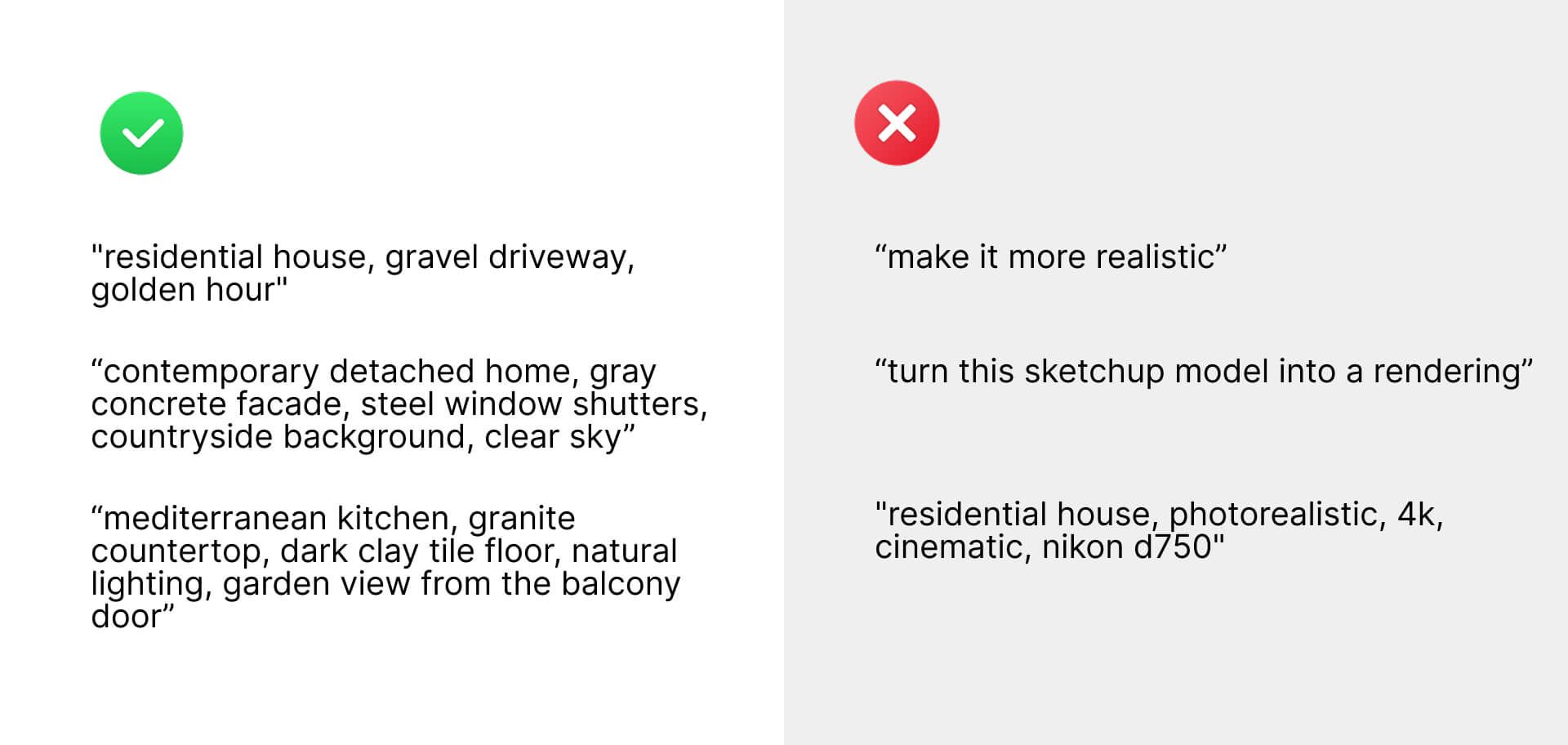
Good prompts follow a structure: {main subject}, {materials}, {setting}, where the different components are separated by commas.
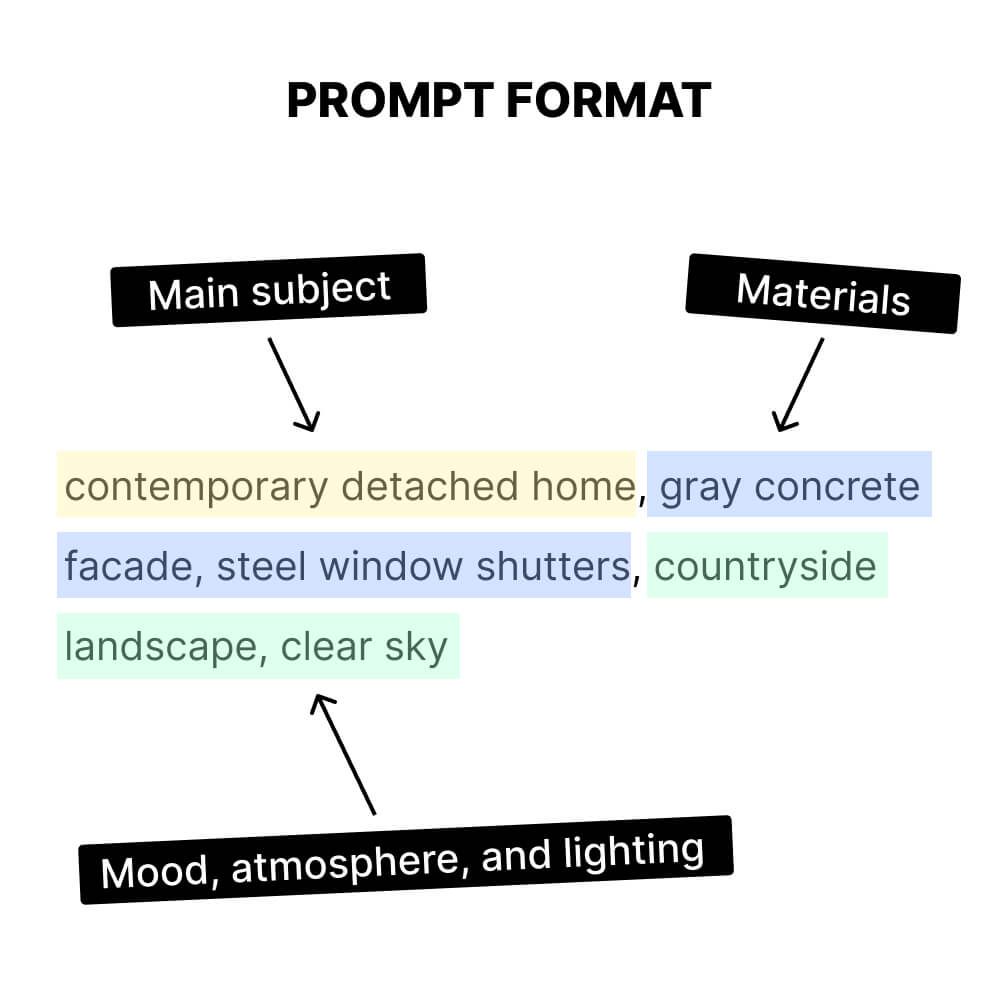
What's important, the order of components matters - those that are at the front of the prompt have more impact on the rendering than those further back.
Here are some of the most impactful elements you can include in your prompts:
Main subject e.g. residential home, or kitchen (we recommend always including this)
Style
Materials
Colors
Lighting
Landscape/background/setting
Time of day
Furniture/product brands
Including more keywords in your prompt won’t necessarily produce better results, though.
We recommend starting with one broad keyword describing the scene and style, e.g. "modern residential home".
Then, check how the app interprets different elements of the scene, and iterate from that by adding more specific keywords about different objects, e.g. "modern residential home, beige facade, sunrise".
It's worth generating a couple of renders for each of your prompt variations, as MyArchitectAI will create different results each time. You can even leave your prompt unchanged and just click the "Generate" button to create a new variation using the same settings.
A couple of other things to keep in mind:
To make changes to your designs, use the editing tools — our core rendering engines aren't optimized for that.
There's no need to add keywords such as "realistic", "4k", "architectural/interior design", and others commonly used when prompting e.g. Midjourney. MyArchitectAI "knows" that you're rendering architectural or interior design and will make your renders realistic by default.
At this point, MyArchitectAI works for architectural and interior designs. Rendering floor plans, masterplans, and landscape design is not supported yet.
Need more personalized help? Studio and Scale plan users can schedule a free one-on-one video training session with one of our Customer Education Specialists. They'll walk you through all of MyArchitectAI's tools and settings, and share best practices tailored to your specific workflow.
Still need help? Ask the team